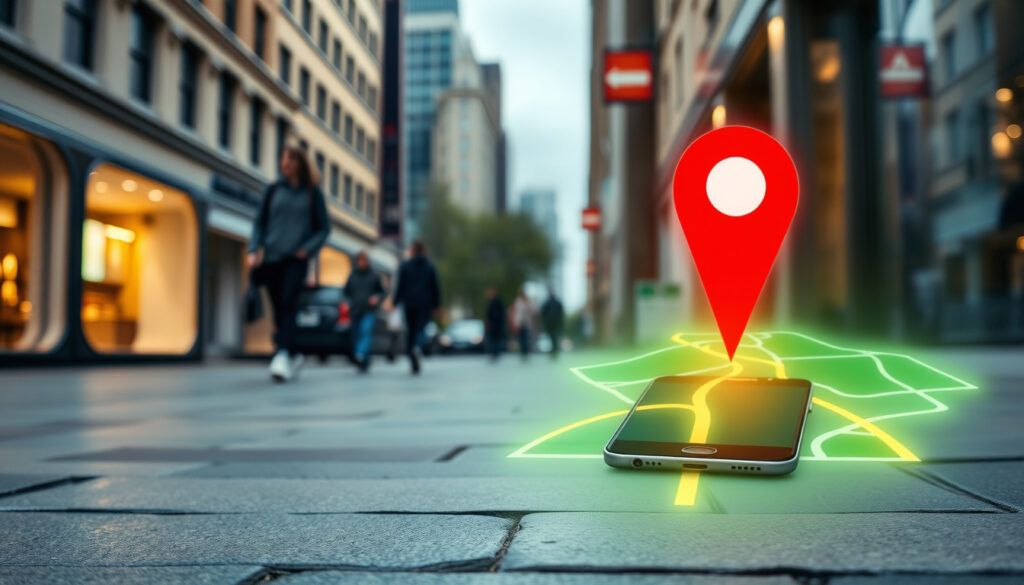
Find My Phone Android: Locate Your Lost Device Fast
Losing your phone is frustrating — especially when you remember exactly where you left it ten minutes ago but your memory went blank the second you needed it. Google’s Find Hub (formerly Find My Device) handles that panic for you, locating Android phones, tablets, and even tracker tags. This guide walks through finding your own device, setting up family sharing, and knowing exactly what the tools can and cannot do.
Official Tool: Google Find Hub · Access Points: Web at android.com/find, app · Key Features: Locate, lock, erase, play sound · Requirements: Google account, location on · Guest Access: Available via Find Hub app
Quick snapshot
- Google account required for your own device (Google Android Help)
- App works on Android 6 and above (Android.com)
- Network features need Android 9 and later (Android.com)
- Tracking without owner’s account access — not possible
- Exact regional availability for satellite location sharing
- Find My Device network debuted in April 2024 (Tom’s Guide)
- Family Link integration added in recent post-April 2024 update (Tom’s Guide)
- Up to 10 loved ones can share tracker tags in Find Hub (Google Android Help)
- Family Link offers real-time arrival and departure alerts (Google Android Help)
| Field | Value |
|---|---|
| Primary Service | Google Find Hub |
| Web Access | myaccount.google.com/find-your-phone |
| App Access | Find Hub on Play Store |
| Key Actions | Locate, lock, erase |
| Family Tracking | Family Link integration |
| Sharing Limit | 10 loved ones per accessory |
| Invitation Window | 24 hours to accept |
| Security PIN | 4-digit for shared devices |
How can I locate my Android phone?
Google’s Find Hub gives you three main ways to find your Android device: the web portal, the dedicated app, or guest access on a friend’s phone. Each method requires you to sign in with the Google account associated with the lost device.
Steps to access Find My Device
To locate your phone, open a browser and navigate to myaccount.google.com/find-your-phone or visit android.com/find. Sign in with the Google account linked to the device you’re searching for. Once signed in, the service immediately shows all devices linked to that account on a map.
The Find Hub app (available on Google Play) mirrors this experience and works on Android OS 6 and above, making it accessible on most Android devices in use today. You can also access Find Hub on any device by opening the website and tapping “Use as guest” — the service prompts you to sign in briefly on the guest device, then redirects to your account data.
Play sound, lock, or erase
Once you see your device on the map, three actions are available. Play sound rings the phone at full volume for five minutes — useful even if you left it on silent. Secure device locks the phone and displays a custom message or alternate number on the lock screen. Erase device permanently wipes all data, and is irreversible. Google warns that erasing requires the device to be online; if offline, the erase command queues and executes the next time the phone connects.
For most users, playing a sound is the first move — it takes seconds and doesn’t risk data loss. Reserve the erase option for genuinely unrecoverable situations.
The web portal at android.com/find delivers the same controls as the app. Google also introduced Remote Lock in 2024, which lets you lock a device without signing in — you provide the phone number linked to the account, and the service sends a verification code to set a new lock screen PIN (Google Find Hub).
Can I locate someone else’s Android phone?
Short answer: no, not without the owner’s explicit permission. Google’s location tools are designed around account ownership, which means the Google account credentials are the key to accessing any device’s location data.
Personal account limits
Find Hub does not allow you to enter someone else’s Google account credentials and pull up their devices. Even if you know the email address, the sign-in flow requires the account owner’s password, and Google sends security alerts to the account holder whenever a new device lookup occurs. This design prevents unauthorized tracking.
Privacy restrictions
Google’s architecture separates personal tracking from peer tracking for privacy reasons. Your location data belongs to your account, and the service does not provide any backdoor for friends, partners, or employers to bypass this protection. According to Google Android Help, sharing invitations require the device owner’s active participation — they send the invite, not the requester.
Exceptions for shared accounts
The only legitimate exception is when someone voluntarily shares their location with you through Google Maps or Family Link. Google Maps lets users share their real-time location from their profile picture to a selected contact for a chosen duration — tap your profile picture, then Location sharing, select the contact, and set the time window (YouTube Tutorial).
The catch: even with location sharing enabled in Google Maps, you cannot retroactively find a phone that has gone offline — the sharing must be set up before the device is lost, and it stops the moment the owner revokes it from their end.
Can I track my daughter’s Android phone?
Yes, but only through Family Link — Google’s parental control tool. Family Link connects a parent’s account to a child’s supervised device, and the Find My Device app now displays a dedicated Family devices tab showing all the children’s gadgets in one view (Tom’s Guide).
Family Link setup
To set up Family Link, download the Family Link app (for parents) on your Android device or iPhone. Create a supervised account for your child during setup — this account sits on the child’s phone and links to yours. The child must sign in with this supervised account, not a standard Google account.
From there, the parent’s Family Link dashboard controls location permissions, app downloads, and screen time. To enable location sharing in Family Link, tap Location in the parent app and select Set up location — this grants the parent access to see the child’s device on the map (Google Guidebooks).
Location sharing and alerts
Family Link sends notifications when your child arrives at or leaves a set location — for example, school or a friend’s house. You can ring the device remotely from the app, which is especially useful if the phone has been silenced or hidden in a backpack. Google states that parents can manage all children’s devices from a single location after the April 2024 integration (Google Family Link).
Family Link only works for supervised accounts — if your teenager sets up their own Google account without your involvement, Family Link cannot be retroactively applied. The child must consent to supervision or be on a managed device type.
Google For Families tools
Beyond location, Family Link covers app permissions, content restrictions, and screen time. Parents see which apps are installed, can approve or block installations, and set daily usage limits. These controls sync across devices if the child uses the same supervised account on a tablet or second phone.
Can I use Find My Phone to find an Android phone?
Yes, Google Find Hub is the primary tool for locating Android phones and tablets. Apple’s Find My service works only on iOS devices and is not compatible with Android — you cannot locate an Android phone using an iPhone app, and vice versa.
Google vs Apple Find My
Google Find Hub and Apple Find My operate as separate ecosystems. An iPhone cannot run Find Hub natively, though Apple devices can participate in Google’s crowd-sourced Find My Device network if the user installs the Find Hub app. Similarly, Android phones cannot be located through Apple’s service without Google’s equivalent app installed.
The Find My Device network (which debuted in Tom’s Guide) leverages nearby Android phones to detect offline devices by broadcasting Bluetooth signals — when another Android device passes within range, it anonymously relays the location. This network requires Android 9 and later.
Android specific tools
Beyond the core locate function, Find Hub supports Remote Lock (locking a device via phone number without account sign-in), satellite location sharing for devices with no cellular or Wi-Fi connection, and the ability to share location links for items like luggage with third parties like airline staff (Android.com).
Cross-platform limits
The limitation remains consistent across platforms: you need the account credentials for the device in question. There is no cross-brand rescue path that bypasses this requirement. For parents tracking children, Family Link remains the only official Google-provided method beyond the device owner’s own account.
What this means: if you have an Android tablet like a Samsung Galaxy Tab or Pixel Tablet, Find Hub locates it just like a phone — the map and remote lock features work identically on tablets running Android 6 or later.
What if Find My Device is off?
If the phone is powered off or has no internet connection, Find Hub shows the last known location before the device went offline. You cannot send a ring or lock command to an offline device — the command queues and executes once the phone reconnects.
Enable remotely if possible
Google does not offer a remote power-on feature — if the battery is dead or the phone is off, Find Hub cannot activate it remotely. The best you can do is view the last location timestamp and estimate where the device was before it lost power.
Preparation steps
To prepare for the worst, enable Find My Device before you need it. On your Android phone, go to Settings → Google → Find My Device and toggle on both “Use location” and “Allow remote lock and erase.” This preparation is the single most impactful step you can take — without it, your options shrink dramatically if the phone goes missing (My Family Mobile Support).
If you did not pre-enable Find My Device, you lose the ability to locate, ring, lock, or erase the phone remotely. Your only options at that point are contacting your carrier to report the IMEI (which may help block the device) or using Google’s Remote Lock feature if you remember the phone number linked to the account.
Alternatives like Gmail login
Gmail login history shows the last approximate IP address and location where an account was accessed, but this is not the same as real-time GPS coordinates. It can occasionally help narrow down a location if Find Hub has gone completely dark, but the data is delayed and imprecise.
The implication: once a device is offline, Find Hub becomes a post-event recovery tool rather than an active search. Your last-best chance is the last-known location pinned on the map — so if you suspect the device is nearby, that timestamp and pin are your starting point.
Fact vs. rumor check
Confirmed
- Google account required for own device tracking
- Find Hub app works on Android 6 and above
- Find Hub network needs Android 9 and later
- Up to 10 loved ones can share an accessory
- Sharing invitation expires after 24 hours
- 4-digit PIN provided for shared device security
- Family Link integrates with Find My Device as Family devices tab
- Remote Lock works without signing in using phone number
Unclear
- Exact regional rollout timeline for satellite location sharing
- Whether third-party tracker tag brands (Tile, Chipolo) fully integrate with Find Hub beyond Bluetooth detection
What experts and users say
Find Hub turns “lost” into “found” — helping you locate tags, devices, and connect with family and friends quickly and safely.
— Android.com (Official site)
Family Link delivers critical notifications including when your child arrives or leaves a certain location.
— Google Family Link (Official site)
With this update, parents can now manage all their children’s devices — from smartphones to Bluetooth trackers — in a single location.
— Tom’s Guide (Tech publication)
Related reading: iPhone 16 Pro Max Colors: Desert Titanium, Black & All Options
When panic hits after misplacing your Android, the Find My Phone Google guide provides fast steps to locate, secure, or even erase the device remotely.
Frequently asked questions
Does Find My Device work if the phone is off?
No. When a phone is powered off, Find Hub cannot send commands to it. The service displays the last known location recorded before the device went offline, but you cannot ring, lock, or erase a device that is not connected. Commands sent to an offline device queue and execute when it reconnects.
How do I enable Find My Device in advance?
Open Settings → Google → Find My Device and enable the toggle options. You need a Google account signed in on the device, and location services must be turned on. This is the single most important preparation step — enabling it before a phone is lost is the only way to ensure the service works when you need it.
Can I find my Android phone without internet?
You can see the last known location without internet, but real-time location updates require the phone to be online. Google’s Find My Device network uses Bluetooth detection from nearby Android devices to update location for offline phones, but this only works if another Android 9+ device passes within range of your lost phone.
What permissions are needed for location?
Find My Device requires location permissions to be enabled on the device itself. The app needs access to your phone’s location, and for the most accurate results, high-accuracy location mode (GPS plus Wi-Fi) should be on. If location is disabled globally or for the Find My Device app specifically, the service cannot locate the device.
Is Find My Device free?
Yes. Google’s Find Hub service is free for all Android devices. There is no subscription or one-time purchase required. The Family Link parental control app is also free for parents and guardians managing children’s accounts.
How to erase data remotely?
In Find Hub, select the device on the map and choose Erase device. Google warns that the phone must be online for the erase command to execute — if offline, the command waits in queue. Once erased, the device cannot be tracked or recovered through Find Hub. This action is permanent and cannot be undone.
Does it work on tablets?
Yes. Find Hub works on Android tablets including Samsung Galaxy tablets and Pixel Tablet, providing map location and Remote Lock just like on phones. The app requires Android 6 or later on tablets, and the same Google account sign-in applies.
More related posts
 Maple Leaf Foods Stock – Live Price and Key Metrics
 Rob Reiner Movies and TV Shows: Full List and Career
 Cast of The Residence (TV Series) – Full List and Cameo Rumors
 NZ vs SA Match Scorecard: T20 World Cup 2026 Semi-Final
 2025 Canadian Federal Election Polls – Latest Leaders and Projections
 Google Snake Game: How to Play, Variants & Tips
 Apartment for Rent Ottawa – Prices Neighborhoods and Tips
 Lewis Hamilton Net Worth 2025: Salary & Endorsements